Levels
A level is made of rooms. Each room is a set of faces; portals join rooms where they meet. The engine draws and carries sound room by room, through portals.
Opening and making levels
| Menu | Does |
|---|---|
| Level > New level... | A new level: one room with a light around the player start. Levels get free numbers 24-31 |
| Level > Import from game | A copy of a game level into the project, to edit |
| Level > Open | Another level of the project (one level is open at a time) |
| File > Save (Ctrl+S) | Saves the level. Play and Build save too |
Selecting: the five modes
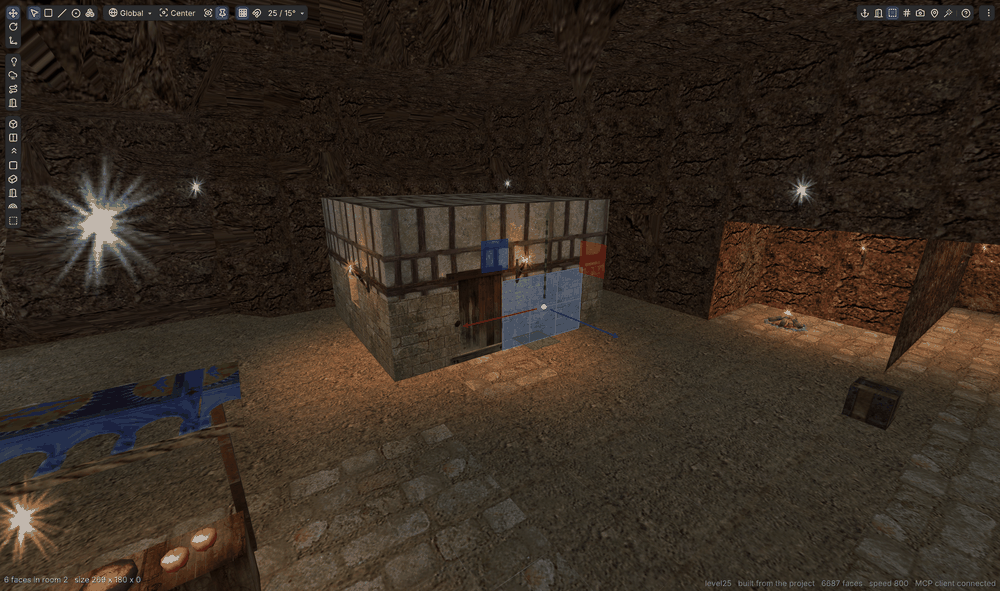
| Key | Mode | A click picks |
|---|---|---|
| 1 | Objects | Entities, lights, fogs, paths, zones, portals |
| 2 | Faces | A face. Double-click: the connected flat faces |
| 3 | Edges | An edge (the one under the mouse is yellow) |
| 4 | Vertices | A vertex. Hold Shift to see every vertex near the mouse |
| 5 | Rooms | A whole room |
- G goes to the next mode.
- Shift+click toggles, Ctrl+click removes (objects: Ctrl toggles, Shift adds). Drag a box to select several.
- Right-click (without moving) opens the menu of actions for the selection.
Move, turn, scale
- W / E / R: move, rotate, scale gizmo. P: gizmo along the face normal or the world axes.
- Snap (magnet) and its step are in the top bar; 100 is one tile. Hold Ctrl while dragging for the opposite.
- Textures follow (top bar, on by default): moved or stretched faces keep their texture's size.
Shapes
The buttons down the left of the Scene view add geometry.
| Shape | Notes |
|---|---|
| Room box | A closed box, facing in, as a new room |
| Corridor | A room box open at both ends, along the view |
| Stairs | Going up away from the view |
| Plane | A flat surface |
| Pillar | A block |
| Door | A block with a doorway through it |
| Arch | Two legs and a half circle |
To draw one: drag its floor, move the mouse up for the height, click. Esc or right-click stops.
While a new shape's face is selected, the Shape box (bottom left) changes its width, height and length.
Face tools
| Tool | How |
|---|---|
| Extrude | Shift+drag the move gizmo, or Ctrl+E (distance in the Inspector; negative goes in) |
| Inset | Shift+drag the scale gizmo |
| Room on this floor | Select floor faces, right-click: walls up to a height, with a ceiling, as a new room |
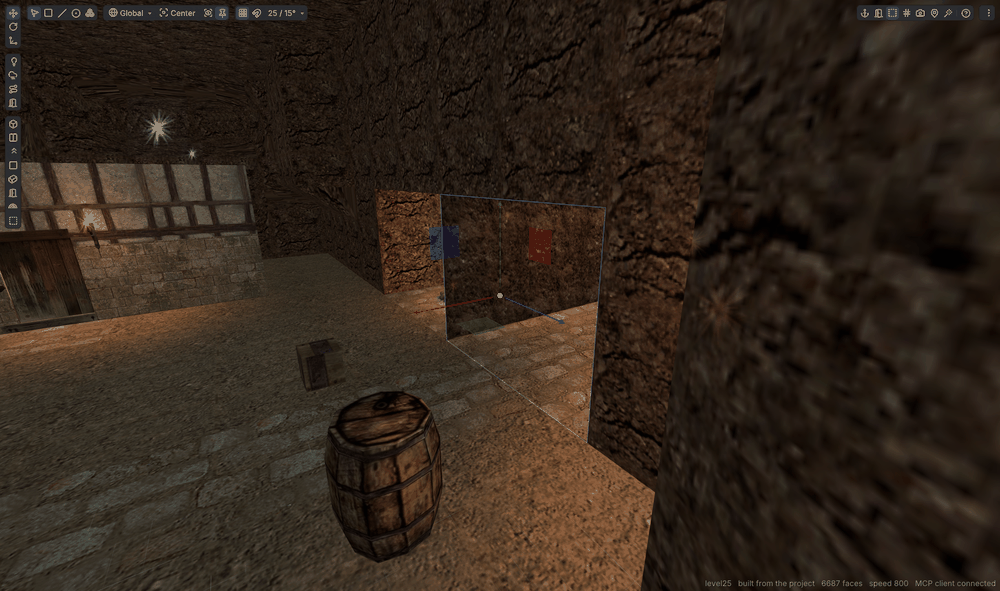
| Doorway | Select wall faces, right-click: an opening of a set width and height. A portal is added when there is a room on each side |
| Flip | Alt+N, when a face shows from the wrong side |
| Merge | Alt+M: triangle pairs into quads |
| Grow / shrink | Alt+G / Alt+Shift+G |
| Loop / ring | Alt+L / Alt+R |
| Duplicate / delete | Ctrl+D / Del |
Tip
For Doorway, set Through a little more than the wall's thickness, so both sides are cut.
Edge and vertex tools
| Key | Tool |
|---|---|
| Alt+U | Insert an edge loop (select one edge) |
| Alt+D | Subdivide the selected edges |
| Alt+C | Connect two edges of a face |
| Alt+B | Bridge two open edges, or two open outlines (a tunnel or a frame) |
| Alt+H | Fill the hole at an open edge or vertex |
| Alt+V | Weld the selected vertices into one |
| Alt+F | A face through 3 or more vertices, in order around |
Weld within (vertex Inspector) welds only vertices closer than a distance.
Textures
Select faces; the Inspector shows their texture.
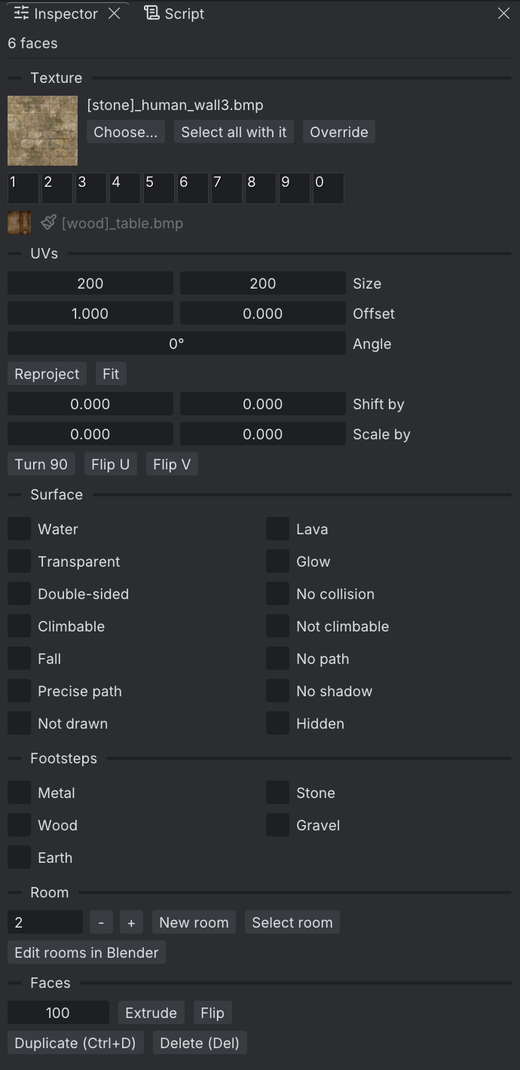
- Choose... opens the texture thumbnails. Select all with it selects every face with that texture.
- Palette: ten slots. Click one to apply it; Alt+1 ... Alt+0 do the same in the Scene view. Right-click a slot to fill or empty it.
- Brush: press I over a face to take its texture and placement. Ctrl+Shift+click (or drag) paints it on faces.
- Painting a selected face paints all selected faces as one surface, going round corners.
UV placement
| Field | Meaning |
|---|---|
| Size | World units one texture covers (new faces get 200). Negative mirrors |
| Offset | Shift, in textures |
| Angle | Turn, in degrees |
Changing one value keeps the others. Reproject lays the texture as new faces get it, Fit stretches it once across the selection. Turn 90, Flip U and Flip V turn each face's texture.
Surface flags
The Inspector's Surface section sets what a face is.
| Flag | Effect |
|---|---|
| Water, Lava | Water or lava surface |
| Transparent | See-through; set Transparency (0-1 blends, 1-2 adds, below 0 subtracts) |
| Glow | Lit at full brightness |
| Double-sided | Drawn from both sides |
| No collision | You walk through it |
| Climbable / Not climbable | Whether the player can climb it |
| Not drawn, Hidden | Not shown |
Also there: Fall, No path, Precise path, No shadow. Footsteps picks the sound: Metal, Stone, Wood, Gravel, Earth.
Rooms
- The Inspector's Room section shows the faces' room. Type another number, or New room; Select room selects all its faces.
- # (view options, top right) colours each room and shows its number.
- Alt+I shows only the selected faces' rooms. Alt+I again shows all.
- The Outliner can list the level by room.
Portals
A portal joins two rooms through an opening.
- Alt+P: select two rooms (Rooms mode, Shift-click the second); the portal goes where their floors meet.
- Add a portal (left buttons) places one in front of the camera.
- Suggest portals (view options) shows where rooms meet at an opening, for you to confirm.
- In the Inspector: its four corners, Front room, Back room, Detect rooms, Flip.
Warning
A room's floor must not reach past a portal into the other room: standing there, the game shows nothing beyond the portal. Make the two floors meet on one line. The Problems panel warns about this.
After geometry edits
Two buttons appear at the top right of the Scene view.
- Refresh preview: redraws edited rooms as the game will (water, shadows).
- Rebuild navigation: recomputes where NPCs can walk. Until then their pathing is stale.
Build and Play do both. The Problems panel's Find holes lists gaps your edits left, with Fill or Add portal.