Getting started
arxedit is a level and content editor for Arx Fatalis, built on the Arx Libertatis engine. You build and change levels, place entities and lights, write scripts, make quests and animation graphs, then play the result straight from the editor.
What you see in the editor is drawn by the game's own renderer, so it matches the game.
Requirements
| What | Notes |
|---|---|
| Windows x64, or Linux x64 (Ubuntu 24.04+) | Linux: no Browse buttons (type the paths), and Play opens the game in its own window |
| A Vulkan GPU | The editor draws with Vulkan only |
| Arx Fatalis | Your own copy: Steam, GOG or the demo. The editor ships no game data |
| ffmpeg (optional) | Only for importing videos other than .mpg (winget install Gyan.FFmpeg) |
Install and start
- Unzip the release anywhere.
- Run
editor/arxedit.exe.
The editor keeps its settings and logs in an editor-user folder next to arxedit.exe. It never writes into the game's folder.
The Welcome screen
On the first start the editor asks two things.
- Game folder (Arx Fatalis): the folder with
data.pakanddata2.pak. - Projects folder: where New project and Open project start.
The other rows (script editor, ffmpeg, MCP server) can wait. Click Continue. You can change everything later in Edit > Preferences...; a new game folder takes effect after a restart.
Your first project
- File > New project... and pick an empty folder. The editor collects the game's instance numbers (a few seconds).
- Get a level:
- Level > New level...: a new level with one room around the player start, to build on.
- Level > Import from game: a copy of one of the game's levels, to change.
- Edit, then press Play (F5) to try it.
Without a project, Level > View game level opens the game's levels read-only.
Targets: classic or extended
Every project has a target. Switch it in Level > Project target, or click the badge in the title bar.
| Target | Runs on | Allows |
|---|---|---|
| classic (default) | Stock Arx Libertatis | Level geometry, entities, lights, ASL scripts, imported models, sounds, textures |
| extended | This fork's engine (the arx.exe that comes with the editor) |
Also Lua scripts, quests, animation graphs, clip tags, videos, a start level of your own |
A classic project may still use extended features. The Problems panel warns about each one, and packaging asks first.

A tour of the window
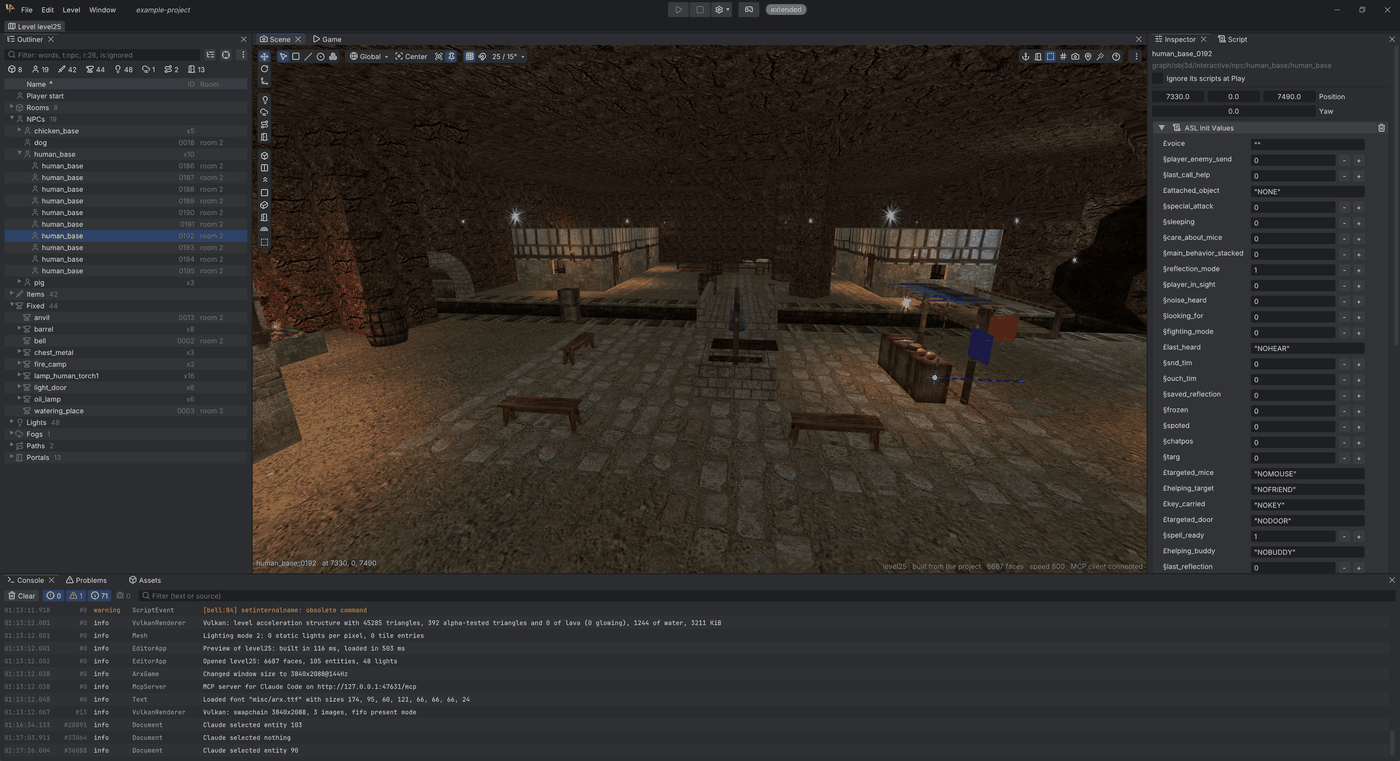
Tabs
The tab strip under the menu bar holds the Level tab and any asset tabs you open: Model, Clip, Graph (animation graphs), Import (animation imports), Quest, Cinematic and Script. Double-click an asset to open its tab.
Level tab panels
| Panel | What it does |
|---|---|
| Scene | The 3D view: select, move and build. Press F1 in it for its keys |
| Game | The running game during Play |
| Outliner | Everything in the level, by type or by room. Filter with words, t:npc, r:26 |
| Inspector | Settings of the selection: faces, entities, lights, zones... |
| Script | The selected entity's own ASL script |
| Assets | The game's and the project's assets, plus Import and New |
| Console | The editor's log, Build output and game messages |
| Problems | What the level checks find. Click one to go there |
History (the undo steps) opens from the Window menu.
Arranging panels
- Drag a panel's tab to dock it elsewhere. Close it with its ×, reopen it from Window.
- An asset tab can go into a window of its own: drag it off the tab strip, or right-click it > Move to new window.
- Window > Reset layout puts everything back.
Next
- Levels: rooms, faces, shapes, textures, portals.
- Entities, lights, fog, paths and zones.
- Shortcuts for all keys in one table.