Entities, lights, fog, paths and zones
Everything that is not geometry is an object: entities, lights, fogs, paths, zones and portals. Select them in Objects mode (key 1) or in the Outliner.
Entities
Entities are items, NPCs and fixed objects. Each is an instance of a class.
- Place one: drag a class from the Assets panel (Entities folder) onto the Scene view. It lands on the floor under the mouse.
- Move or turn: the gizmo, or Position and Yaw in the Inspector.
- Ctrl+D duplicates (with its overrides), Del deletes.
Several at once
- Ctrl+click toggles an object, Shift+click adds one. A box drag selects the objects inside.
- The gizmo moves, turns and scales them about their middle. Switch Center (next to Global) to Pivot to turn each about itself.
Instance overrides (ASL lines)
A class sets its values in its script. The Inspector lets one entity differ from its class.
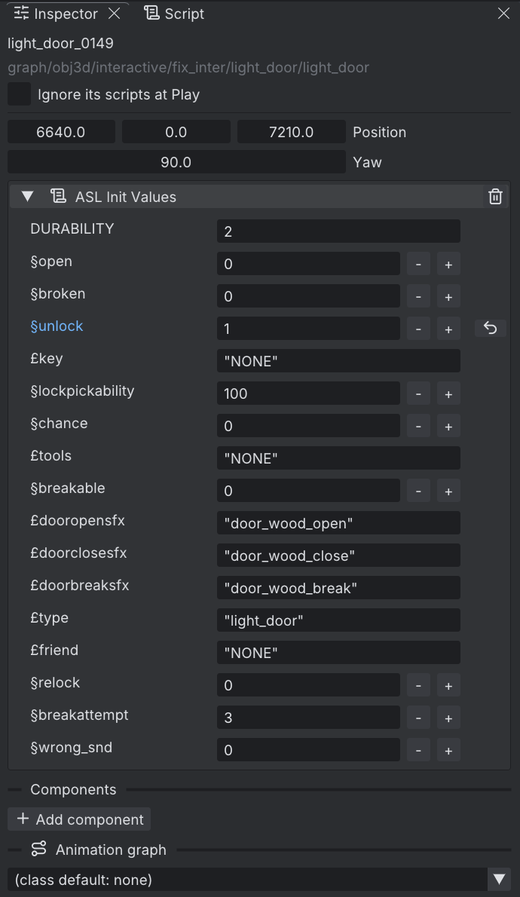
| Section | What it shows |
|---|---|
| ASL Init Values | The values the scripts set at start (SET lines). Edit one to override it |
| Contents | A container's items: Add item, remove, Revert |
| Weapon | An NPC's weapon, or none |
| Other overrides | Override lines no section above shows |
- An overridden value shows in blue, with an arrow to go back to the class's value.
- Values starting with
~or^are computed while the game runs; they show greyed. - Overrides are saved in the level as ASL lines. Build puts them at the top of the entity's start-up script, so they win over the class.
Note
The Scene view does not run scripts. Overrides show in the game, when you Play.
The Script panel holds the entity's own ASL script, if you want more than values: Create a script, or Edit a copy of the game's. See Scripting.
Lights
Add one with Add a light (left buttons). Lighting is baked live: drag a light and the level re-lights.
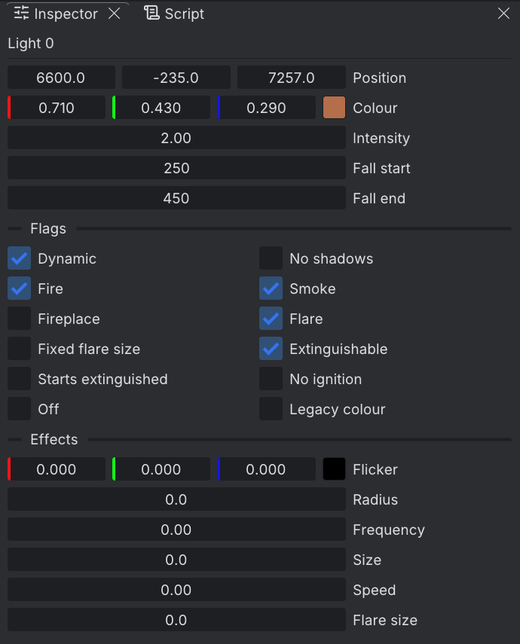
| Field | Meaning |
|---|---|
| Colour, Intensity | The light itself |
| Fall start / Fall end | Full brightness up to Fall start, none past Fall end |
| Flags | Dynamic, No shadows, Fire, Smoke, Fireplace, Flare, Extinguishable, Starts extinguished, Off... |
| Effects | Flicker colour, flare size and the like |
Dynamic lights are lit by the game each frame (they can flicker or go out) and are not baked.
Fog
Add a fog places a fog emitter: particles the game spawns. Set its Colour, Size, Growth, Lifetime, Frequency and Speed. Directional gives it a pitch and yaw.
Paths
A path is a line of points that cameras and entities can follow (by script).
- Add a path, then Add a point in the Inspector.
- Each point has a position (relative to the path) and a time in ms.
Zones
A zone is an area on the floor, up to a height. Scripts react to the player entering it; the zone itself can change the ambience.
- The Zone button (after the shapes), or right-click > Add > Zone: drag a rectangle on the floor.
- Select it to edit: drag a corner, drag the top diamond for the height, double-click an edge for a new corner, Del removes the selected corner.
- Height -1 means all the way up.
On entering settings:
| Setting | Effect |
|---|---|
| Ambiance | A sound ambience, with its volume |
| Fog colour | The fog's colour |
| View distance | How far the game draws |
| Reverb | Sound reverb amount |
Zones are coloured by purpose: orange for a level exit, teal for ambience, fog, view distance or reverb, violet for the others. Zones in the view options hides all but the selected one.
Level exits and entrances
Two marker classes link levels. Find them in the Assets panel under system/markers.
- Level entrance: where the player arrives, facing its yaw.
- Level exit: pick its Zone (or Zone around it), the Level it leads to and the Entrance there.
Build writes the script. The Problems panel says what is missing.
The player start
Select Player start in the Outliner to set where the player starts the level, and the yaw.