Animation
arxedit imports animation clips, retargets them onto the game's models, and runs them through animation graphs: blend trees and state machines that pick what an entity plays.
Animation graphs and clip tags need the extended target. Imported clips are plain game animations and work on both.
Import clips (retargeting)
Clips made for other rigs (Mixamo, mocap, Unreal, Blender) can play on the game's models.
- Assets > Import > Animation clips..., pick FBX or glTF files.
- Choose the Target model (a game or project model) and a new or existing Animation import.
- The Import tab opens. Build retargets the clips onto the target.
In the Import tab:
| Clip column | Meaning |
|---|---|
| Take | Which take of the file |
| Name | The clip's name in the game |
| Moves | Root motion: the hips' travel moves the entity |
| Feet | Keep feet planted where the source's feet touch down |
| From / to (s) | The part of the take to keep |
| Speed | Playback speed |
- Targets: one import can retarget onto several models.
- Retargeted lists each clip's result, with any problems.
- Every change saves and rebuilds. The clip is then in the Clip tab, the graphs' clip picker and Lua's
Assets.anim.
The bone map
The Bones panel matches the model's bones to the source's joints. It is guessed from bone names (Humanoid-style names) and shared by every import onto that model.
- Change a row's Model's bone or Source's joint to fix it.
- + Name maps extra bones (a tail, wings).
- Guess again starts over from the names.
The Clip tab
Double-click a clip in Assets (Animations) to open it.
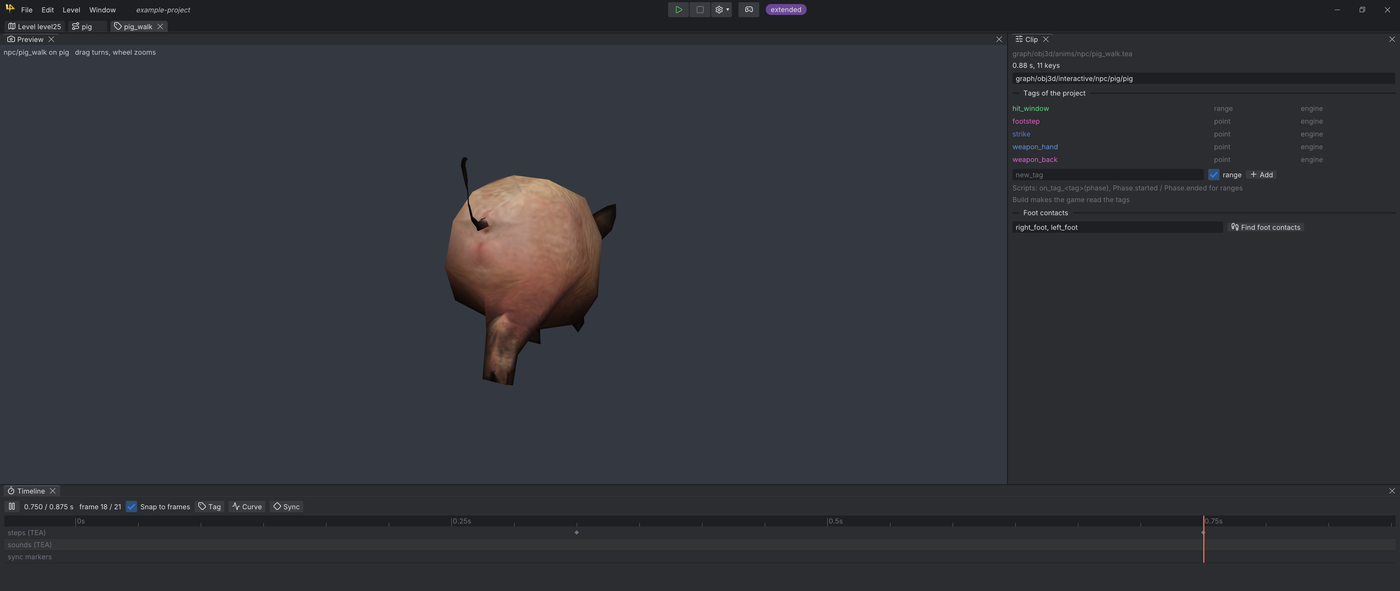
- Tags: points or ranges on the timeline. Scripts get
on_tag_<tag>. The engine's own: hit_window, footstep, strike, weapon_hand, weapon_back. - Curves: a value over the clip (an IK weight, a parameter).
- Sync markers: clips blended together keep them aligned.
- Find foot contacts: marks where each foot is planted, for the Foot Lock node.
Animation graphs
Make one with Assets > New > Animation graph.... It starts as the game's original behaviour, so you can change one piece at a time.
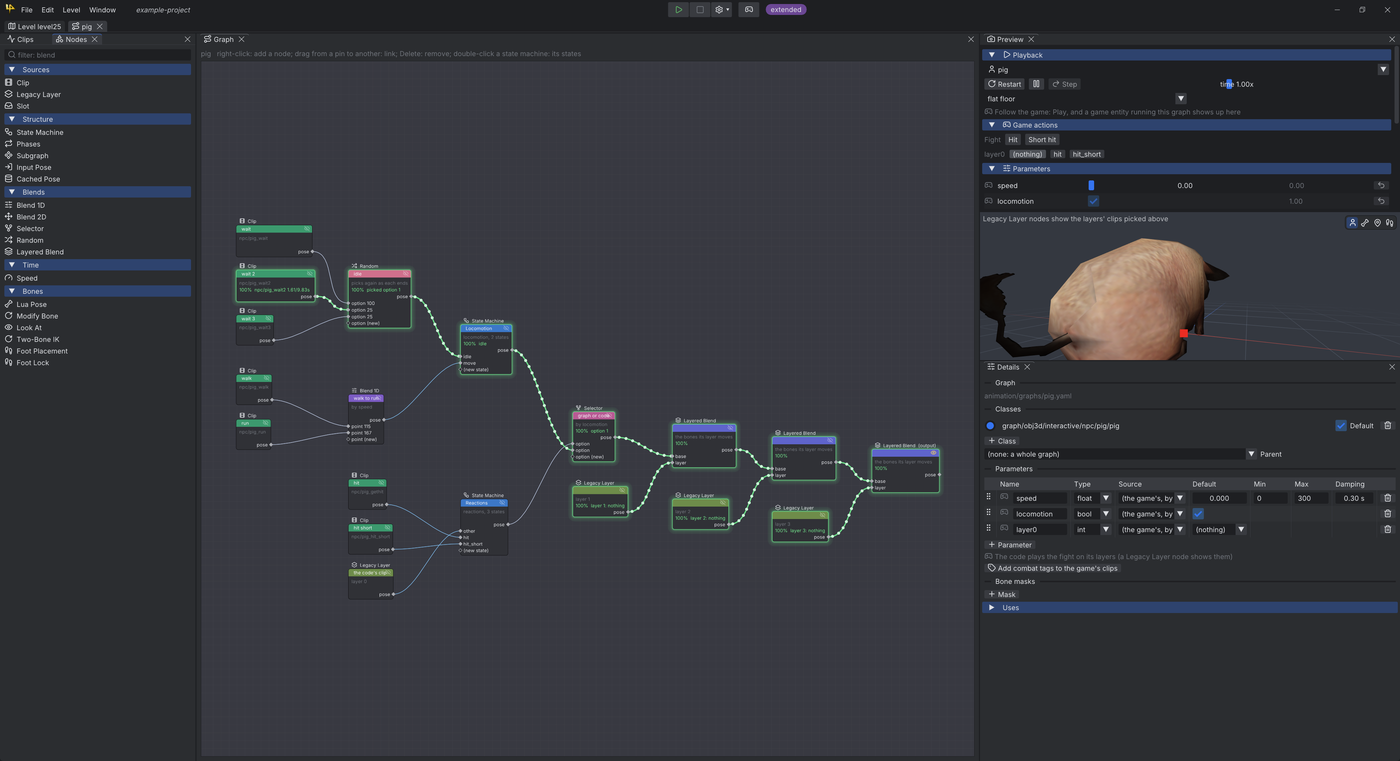
| Panel | What it does |
|---|---|
| Clips | The game's and project's clips. Drag one onto the graph for a Clip node |
| Nodes | Node types by category. Drag one onto the graph |
| Graph | The nodes. Right-click a node > Make it the output |
| Preview | The graph on a model, with parameter sliders and test floors |
| Details | The selected node; with nothing selected, the graph's classes, parameters and bone masks |
Nodes
| Category | Nodes |
|---|---|
| Sources | Clip, Legacy Layer (the game's own animation), Slot |
| Structure | State Machine, Phases, Subgraph, Input Pose, Cached Pose |
| Blends | Blend 1D, Blend 2D, Selector, Random, Layered Blend |
| Time | Speed |
| Bones | Lua Pose, Modify Bone, Look At, Two-Bone IK, Foot Placement, Foot Lock |
Parameters
Details (nothing selected) > Parameters: float, int, bool, trigger, pulse or target. The game fills some itself (speed, moving, in_combat...). Scripts set the others, for example anim.lookTarget = Player.
Which entities run it
- Classes: the classes the graph is for. Default makes it the graph every entity of that class runs.
- In an entity's Inspector, Animation graph picks another graph, none (the game's original animation), or the class default. Parameters and clips can be overridden per entity.
State machines
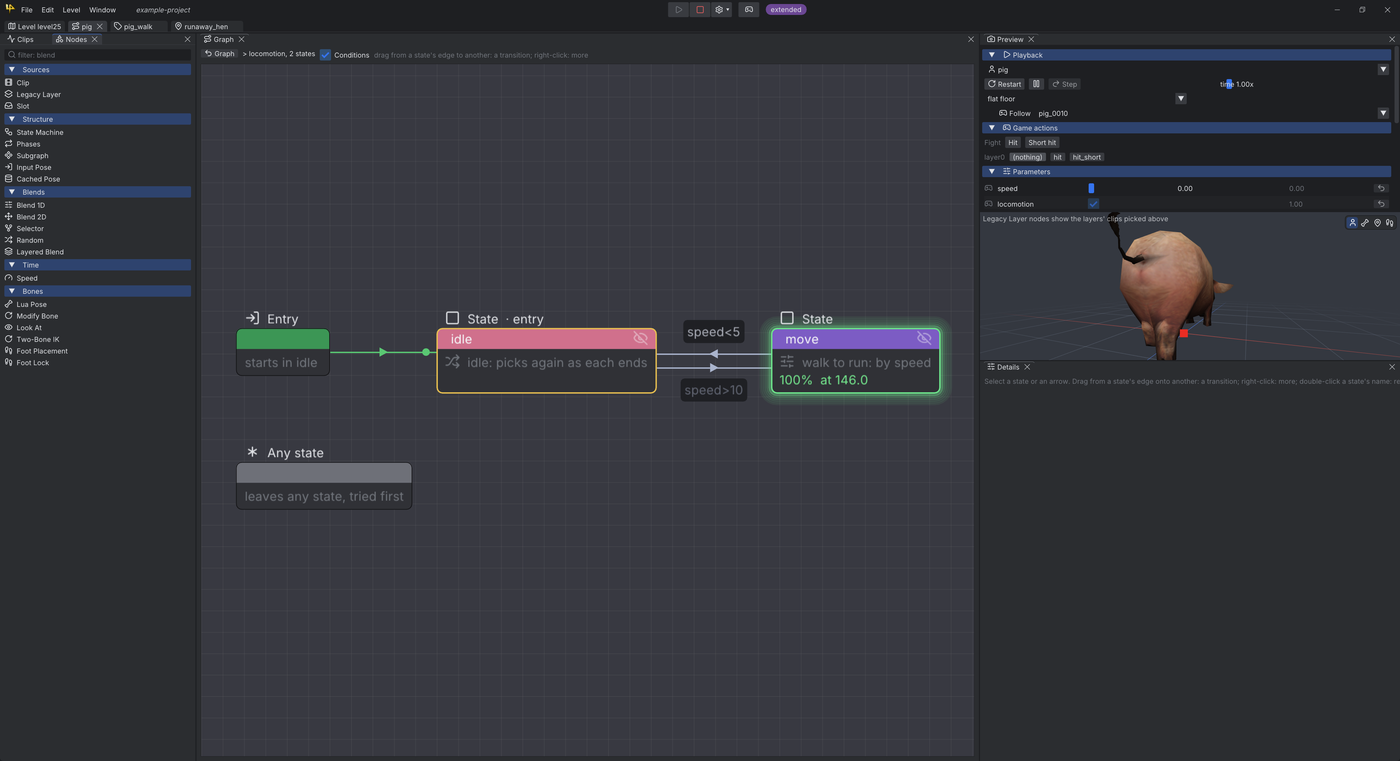
Double-click a State Machine node (or Open its states) to edit its states.
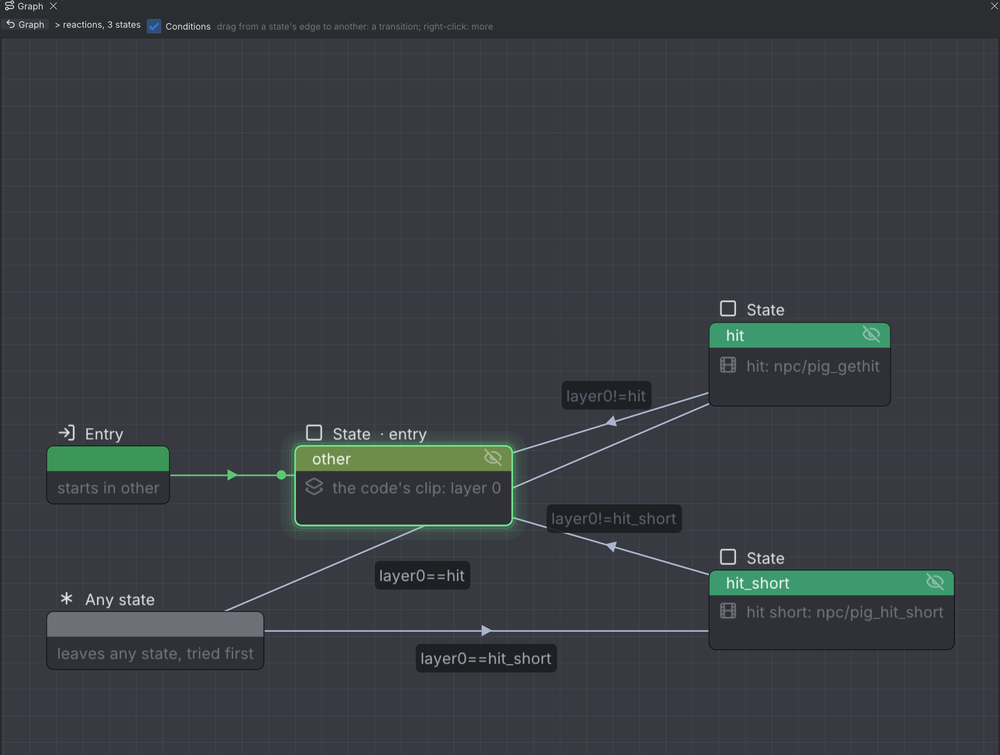
- Right-click the background: Add a state. Drag from a state's edge to another: a transition.
- Any state transitions are tried first, from every state.
- A transition has a Duration, a mode (Inertialization or Crossfade) and conditions on parameters: all of, any of, none of. As text takes them typed:
speed>10 and (alert or not moving). - The Graph button goes back to the graph.
Live view
While Play runs, the Graph tab shows what the game plays.
- Active nodes get a green border with their weight and status; links that carry a pose are green.
- In a state machine the active state glows and the transition taken flashes.
- Follow (Preview > Playback) drives the preview with a game entity's parameters.
A graph edited during Play is rebuilt, and the running game picks it up.